
Desktop app for Mac and Windows
Open and edit .story e-learning course files on a Mac or PC.
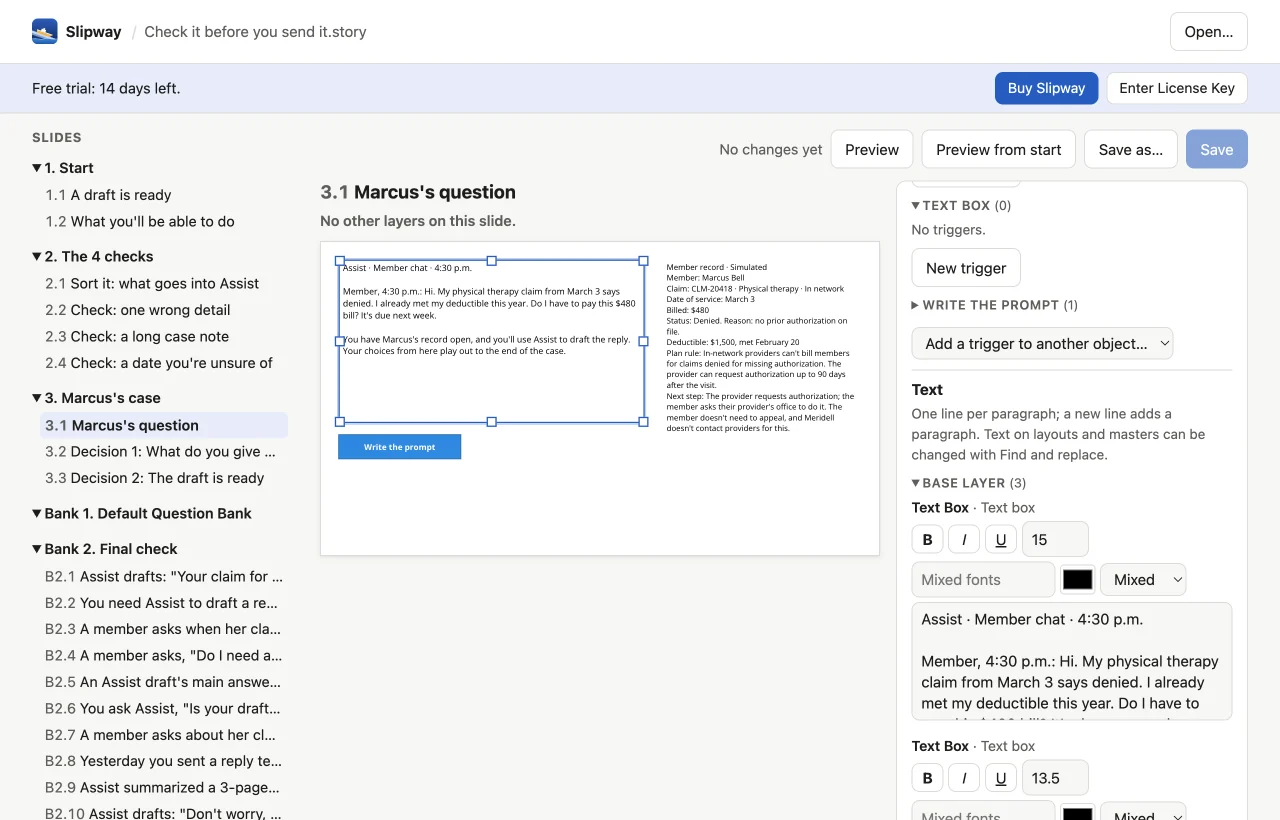
Fix the wording on a slide or the answer to a quiz question, then save the file where it is. It opens in the authoring tool as usual.
For the people who keep courses up to date
- On a Mac: the course was built on Windows, and the client wants one sentence changed before Friday.
- When the colleague with the authoring tool is out: the fix is small, but it waits for them.
- After an accessibility review: the course can't launch until every picture has alt text.
- When a learner writes in: the answer marked correct on a quiz question is wrong.
What you can change
Open a course and every slide is there, layers included. Click an object on a slide to edit it.
Text and titles
Edit the words on a slide, with formatting and spell check. Find and replace across the whole course.
Notes and alt text
Update slide notes and the alt text that screen readers read aloud.
Pictures
Swap a picture for a new one. Move or resize objects on the slide.
Quiz questions
Set correct answers, points, attempts and feedback, and the passing score on the results slide.
Triggers and variables
Change what a click does, or set a variable's starting value.
Slides and layers
Reorder, copy, add and delete slides. Work with layers, buttons, hotspots and timing.
Preview
Play the course with your changes before you hand it back.
Save with a backup
Save in place. Slipway keeps a copy of the file as it was, and a recovery copy while you work.
Works offline
Fix a course on a plane, or anywhere without Wi-Fi.
How it works
-
1
Open a course
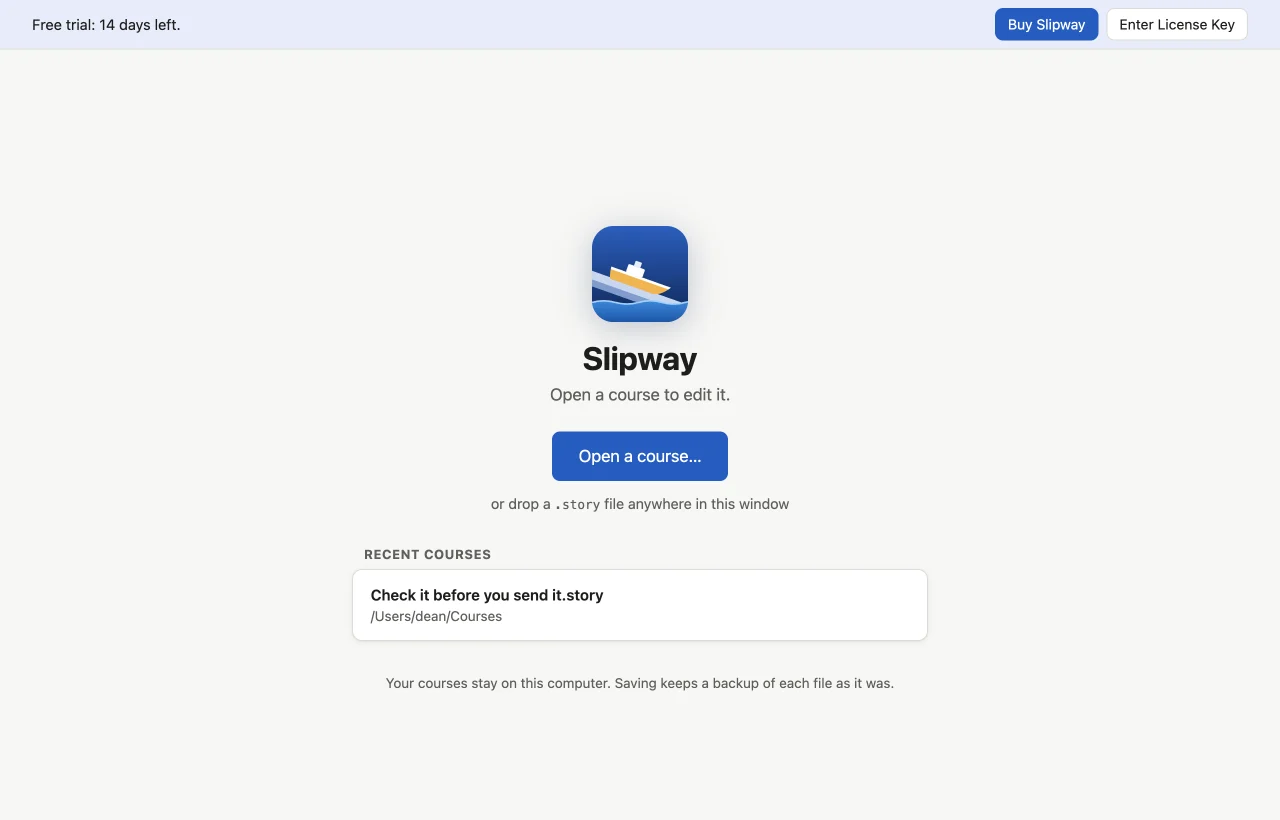
Choose a .story file or drop it on the window. Your recent courses are one click away.
-
2
Make the change
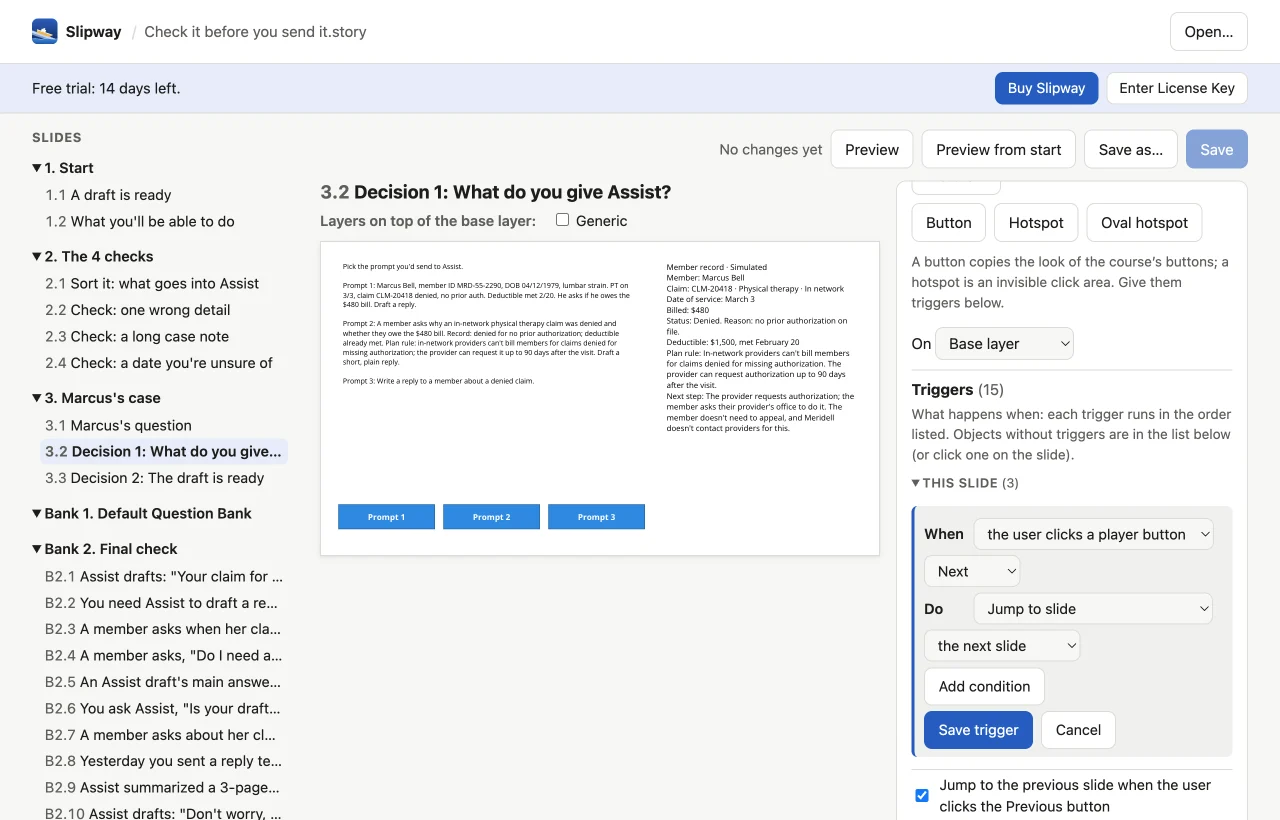
Pick a slide and click what you want to fix. Its triggers sit in the panel beside it.
-
3
Check it and save
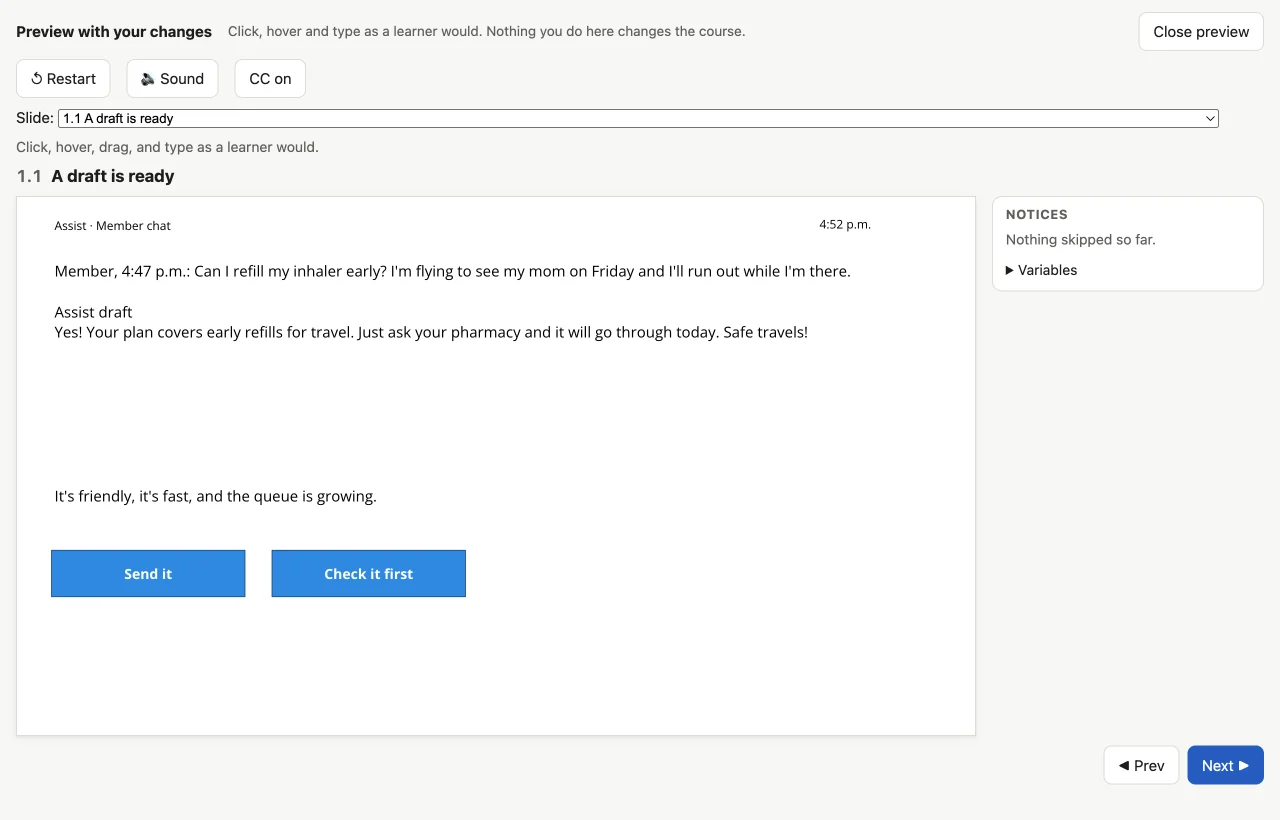
Preview plays the course with your changes. Save writes the file in place, and the authoring tool opens it with your edits.
$199 a year, every feature included
Try it free for 14 days first, with no card. One license works on 2 computers, Mac or Windows.
Questions
Do I need the authoring tool installed?
No. Slipway opens, edits and saves .story files on its own. Whoever uses the authoring tool opens your saved file there as usual.
Which computers does it run on?
Macs with Apple silicon or Intel on macOS 13 or later, and PCs with Windows 10 or 11. One license covers 2 computers, and they can be a mix of both.
What happens when the trial ends?
You can still open and look through courses. To save changes, buy a license and enter the key in Slipway.
Does it need an internet connection?
Not for everyday work. Slipway checks your license online now and then, and keeps working for up to 14 days without a connection.
Can it publish a course to the web or an LMS?
No. Slipway saves the .story file, and you publish from the authoring tool as before.
How do I move my license to a new computer?
On the old computer, choose License (in the Slipway menu on a Mac, or Help on Windows), then Deactivate This Computer. Enter your key on the new one. If the old computer is gone, email us.